

Most AI companion apps show some form of read or seen indicator, but whether you get a per-message checkmark, a conversation-level marker, or nothing at all depends entirely on the platform and its settings. Some apps let you toggle receipts off, others bake them in permanently, and a few skip them altogether. The testing section below shows you how to confirm the behavior on any companion in minutes.
TL;DR:
- Delivered means a message reached the device or server; read means it appeared on screen or received explicit acknowledgment, not merely a notification preview.
- Some apps mark each message, others show only a conversation’s last read position, and channel settings may disable receipts altogether.
- During a trial, compare a message icon with the conversation badge across two devices; updates after a refresh may indicate sync lag, not failure.
- A read indicator records an interface event, not human review; check receipt controls, quiet hours, proactive messaging, and read data retention before sharing sensitive details.
Table of Contents
- How read receipts actually work behind the scenes
- Common feature variations you’ll see across platforms
- How to test whether your AI companion shows read receipts
- What read receipts mean for your privacy and safety
- What to check before you subscribe
- Finding a companion with the receipt behavior you want
- FAQ
- Sources
How read receipts actually work behind the scenes
A read receipt is the end point of a three-step chain: sent, delivered, read. Your message leaves your device first, lands on the server or the companion’s backend second, and only gets marked “read” once it becomes visible or is explicitly acknowledged. These are distinct events, not one continuous status bar, and that distinction explains most of the confusion people run into.
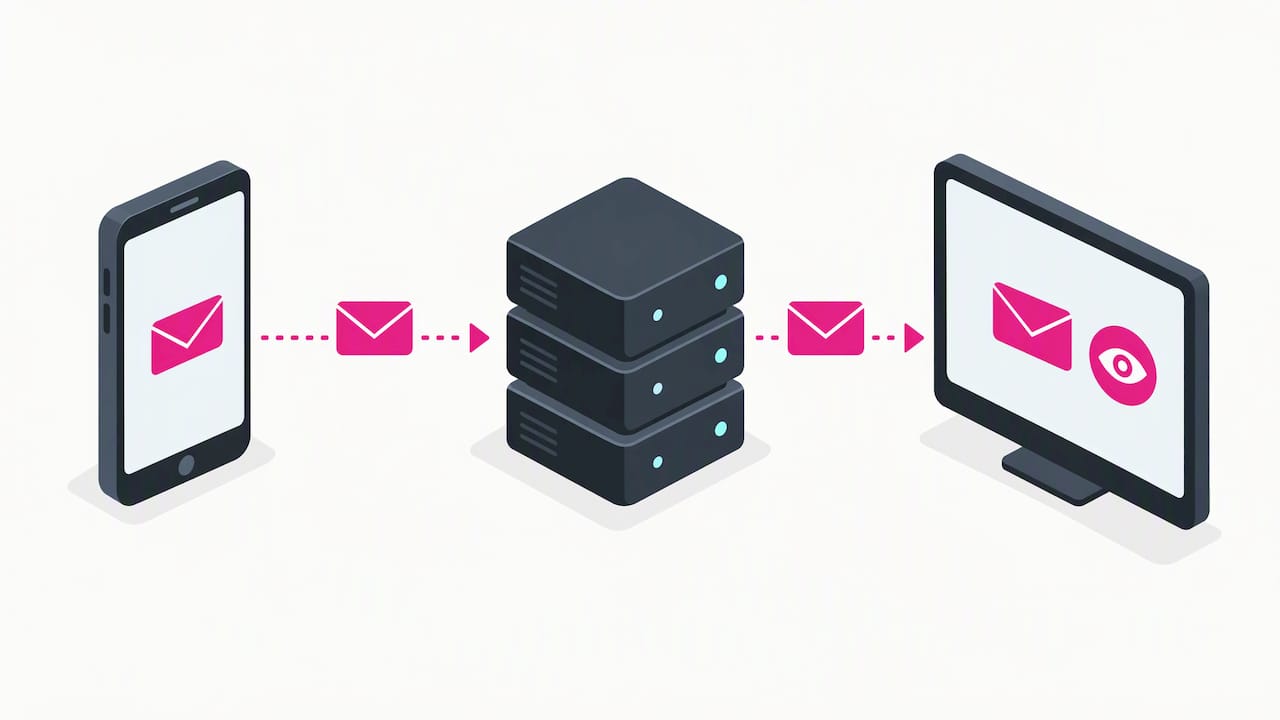
CometChat’s documentation separates delivery and read receipts into two different method calls, markAsDelivered() and markAsRead(), with real-time callbacks like onMessagesRead firing when the event happens. Nexconn’s Chat SDK docs describe something similar at the message level: a receipt triggers when a received message becomes visible on screen, and developers can set a needReceipt flag to control whether that message generates one at all.
Three mechanisms commonly trigger a read event:
- On-screen visibility: the message scrolls into view and the client fires a read callback automatically.
- Explicit mark-as-read: the app or user action sends a separate signal once a conversation is opened.
- Channel-level settings: the backend can enable or disable read events for an entire conversation type, overriding what any single message does.
Read events fire only after a message is actually rendered on screen, according to Nexconn’s implementation notes, which means a notification preview or a background app state typically does not count as “read” yet.
Common feature variations you’ll see across platforms
Not every companion app implements receipts the same way, and the differences shape how much you can actually learn from a checkmark. GetStream’s documentation notes that read events can be switched off entirely at the channel level, which means the same underlying chat engine can look completely different depending on how a given app configures it.
- Per-message receipts versus last-read position: some systems mark every individual message, while others, like the approach described in SetGet’s docs, track only a conversation-level last-read timestamp with no per-message detail.
- Group versus direct-message indicators: group chats often show partial or percentage-style read counts, while one-on-one chats use simple checkmarks.
- Configurable or disabled receipts: Nexconn’s Chat UI documentation shows receipts enabled by default with gray and green checkmark icons, but notes they can be limited to certain channel types or turned off.
- Quiet hours and proactive messaging: settings that pause notifications can also delay when a message registers as read.
- Cross-device sync lag: a message can show as read on one device and unread on another until a reload or the next poll cycle.
How to test whether your AI companion shows read receipts
You do not need technical skills to verify this. Some tests during a free trial or demo can help you learn how a companion handles receipts.
- Two-device check: send a message from your phone, open the same conversation on a tablet or browser, and watch whether the status icon updates in real time or only after a refresh.
- Channel versus message test: compare what happens to an unread badge on the conversation list against any icon attached to the individual message bubble. They do not always update together.
- Settings toggle test: change any quiet-hours or notification setting, send a new message, and repeat the first test to see if the receipt behavior shifts.
- Look for SDK-matching signs: a reliably updating checkmark that changes the instant a message is opened usually lines up with documented callbacks like onMessagesRead, while a status that only updates after you reopen the app suggests a simpler, session-based implementation.
Pro Tip: Run each test on two devices at once and jot down the timestamps. A gap of more than a few seconds between when you open a message and when the sender’s view updates usually points to a sync delay rather than a broken feature.
For a similar hands-on approach to another common chat signal, see our tests for typing indicators.
What read receipts mean for your privacy and safety
A read receipt is a UI design choice, not proof that a human reviewed your message. The realism it creates, paired with typing bubbles and timed replies, is built to feel immediate, but CometChat’s UI Kit documentation frames these signals as interface conventions borrowed from standard messaging apps, not indicators of human oversight.
Receipts become a privacy question the moment they intersect with proactive messaging and memory. If a companion can see you read a message and then follow up unprompted, that combination says more about data handling than the checkmark alone does. Before sharing anything sensitive, work through this short list:
- Check whether read receipts can be disabled in settings, not just muted.
- Test how quiet hours interact with proactive messages, since a receipt showing “read” at 2 a.m. may trigger a response you did not want.
- Look for any stated policy on where read-event data gets stored and for how long.
- Run a photo-sharing privacy test before sending anything personal, and confirm payment safeguards exist before upgrading from a trial.
For a deeper look at these questions, our privacy guide for AI companions covers memory controls and data handling in more detail, and our proactive messaging tests walk through a full week of quiet-hours checks.
What to check before you subscribe
A few minutes of testing during a free trial can save you from a subscription that does not match how you actually want to communicate.
- Confirm whether the app supports per-message receipts or only a conversation-level last-read marker, and whether that’s configurable.
- Ask support, or check the documentation, about cross-device sync speed and how long read-event data is retained.
- Look specifically for quiet-hours and proactive-message controls, since these interact directly with when receipts appear.
- Run the two-device and settings-toggle tests from the testing section above during any demo period, before you pay for anything.
Our pre-subscription safety checklist walks through additional checks worth running alongside these.
Finding a companion with the receipt behavior you want
We built Virtualship.ai around exactly this kind of hands-on feature check: side-by-side breakdowns of how different AI companion platforms handle read receipts, proactive messages, and memory, so you are not left guessing from a marketing page.

Our comparison page lets you filter companions by the privacy controls and messaging behavior that matter most to you, whether that means full per-message receipts or none at all. Start there to find a platform that matches how you actually want your conversations to feel.
FAQ
Do all AI companion apps show read receipts?
No, support varies widely. Some platforms show per-message checkmarks, others only track a conversation-level last-read position, and some disable receipts entirely at the channel level, as GetStream’s documentation notes is possible.
What’s the difference between delivered and read?
Delivered means the message reached the recipient’s device or server, while read means it was actually displayed on screen or explicitly acknowledged. CometChat’s docs treat these as separate events with their own API calls and callbacks.
Can I turn off read receipts in an AI companion app?
Many platforms allow this, often as a channel-level setting rather than a per-message toggle, based on configuration options described in Nexconn’s documentation. Check the specific app’s settings menu during a trial to confirm.
Why does a message show as read on one device but not another?
This usually comes down to sync timing rather than a broken feature. Some implementations store read state per session rather than in a durable, shared location, which can delay updates across devices until a reload or the next poll.
Does a read receipt mean a real person saw my message?
Not necessarily. A read indicator reflects an interface event, such as a message becoming visible on screen, and is treated as a UI design signal rather than proof of human review.
Sources
- Delivery & Read Receipts – CometChat Docs
- Use read receipts | Nexconn Documentation
- Message status indicators — GetStream
- Per-message read receipts | Nexconn Documentation (Chat UI)

